How to Integrate Mindbody on Your Squarespace Website
If you’re running a fitness studio, wellness centre or dojo—and you’re using MINDBODY—you’ve invested in your booking system. But here’s the kicker: if your website still makes clients leave your brand experience to book, pay or manage their account, you’re creating friction in your customers’ booking journey.
Enter MINDBODY’s Branded Web Tools: widgets and links that embed directly into your website so clients stay on your site, have fewer clicks, and you look sharper.
Let me walk you through the step-by-step integration process with a Squarespace site and show you how to make the most of the tools.
What are branded web tools?
Before you dive into the how-to, let’s cover the what and the why.
Branded Web Tools are mini-apps/widgets that pull data from your MINDBODY system (classes, appointments, staff, accounts, payments) and display it on your website in real time. 100%, you’ve seen this on other sites before. (see image below)
They’re customised to match your branding (fonts, colours) so the booking experience doesn’t feel “off-site”.
They keep clients on your domain, no redirecting to the generic MINDBODY booking page. That means fewer exits, less friction and more chance of conversion.
Good news: you don’t necessarily need a full-on developer for this. The process is mostly copy-and-paste.
Bottom line: if you’re serious about turning your website into a growth engine rather than a brochure, this is something you need to set up.
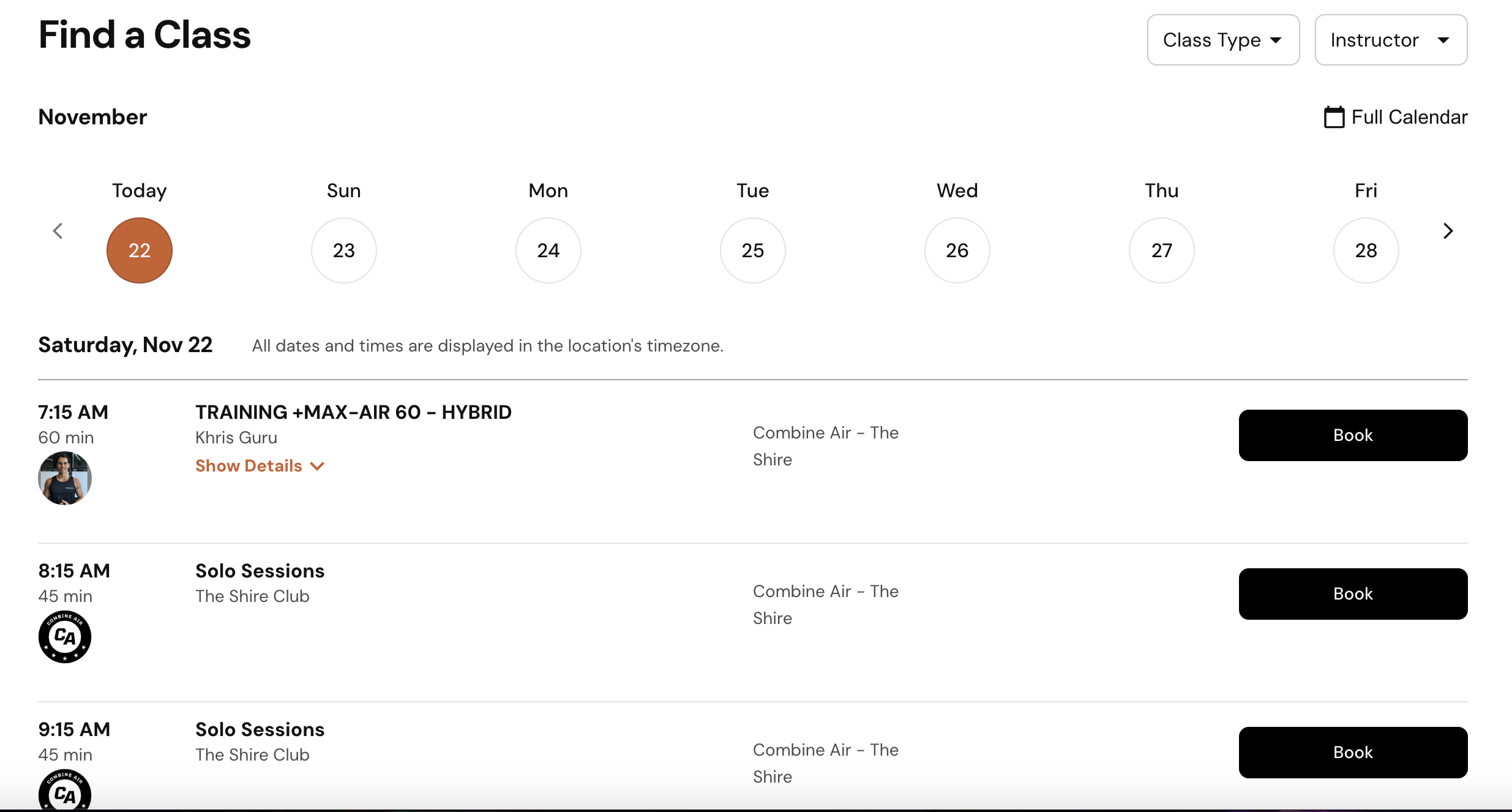
Mindbody branded web tools
Step-by-step: Integrating with Squarespace
Here’s how to do this properly on Squarespace (or any website platform, but we’ll reference Squarespace since many studios use it).
1. Log into your Branded Web Manager in MINDBODY
First things first: you need access to your Branded Web portal. This is separate from your regular MINDBODY admin login. Go Here —-> (brandedweb.mindbodyonline.com)
Once logged in, you’ll see options like Widgets and Links.
2. Create or select the widget you need
In the Widgets screen:
Choose the widget type you want (class schedule, appointment booking, staff listing, etc). (support.mindbodyonline.com)
Configure the widget: select what you want shown, style it to match your site (colours, fonts) and preview how it looks.
Once you’re happy: click Deploy (or generate) and Copy the embed code. (support.mindbodyonline.com)
3. Add the code snippet into your Squarespace site
On your Squarespace site:
Choose the page where you want the widget (e.g., “Book a Class”, “Appointments”, “My Account”).
Use a Code Block (or embed / custom HTML element) and paste the snippet you copied from Branded Web.
Save and preview to ensure the widget displays correctly and is responsive (mobile-friendly).
Tip: test a booking/registration flow to confirm it works end-to-end—not just visually.
4. Create custom links if you need them
Besides widgets, you can also use specialised links for things like “Login/Register”, “Buy Now”, “View Schedule”. In Branded Web you find a Links section:
Choose the link type you need, configure the link text/style.
Copy the link code or URL and paste it into your navigation, buttons or CTAs on your site.
These links work alongside widgets to give you flexibility in how people interact. (support.mindbodyonline.com)
5. Match the design and flow to your brand
Integration isn’t just technical—it’s strategic. Make sure the embedded tools appear as a natural part of your website experience:
Use your brand colours and fonts in the widget settings so it doesn’t feel “foreign”.
Ensure the navigational flow is seamless: from website home → bookings → checkout → confirmation.
On mobile especially: test the entire journey. Over 50% of traffic is mobile, and you can’t afford a clunky experience. (mindbodyonline.com)
6. Monitor, tweak and test
Once live, keep an eye on how it performs:
Are bookings increasing?
Are drop-offs happening at a particular stage?
Does the widget load fast and behave well on different devices/browsers?
Small tweaks (like repositioning the widget, simplifying the page, adjusting styling) can make a big difference.
Specific tips for Squarespace users
Since you’re on Squarespace, here are a few extra things to watch:
If you’re using Squarespace’s newer Fluid Engine editor, you might need to use a Code Block rather than embed blocks from older versions.
Ensure you paste the widget code in the “Page Content” area, not in a meta or header section—so it’s visible and interacts properly.
If you want the “My Account” login link in the top nav: you might need to insert the link code via Code Injection in the header/footer. Popular guides cover this. (pixalitydesign.com)
Performance matters: make sure you don’t overload the page with multiple heavy widgets. If you do, split across pages or use tabs/accordions.
Common mistakes
Widget looks mis-branded: If the fonts or colours don’t match your site, clients will feel like they’ve left your site. Always customise inside the Branded Web tool.
Mobile issues: Some widgets may not adjust perfectly on mobile by default. Always preview and tweak.
Slow load times: Too many embedded widgets or heavy customisations can slow your page. Keep it lean.
Broken flows: Test the full user journey after integration. Make sure registrations/bookings/payments actually end in the expected confirmation.
Giving up too early: It might feel like “just a widget”—but done right, this can dramatically smooth your client experience and increase bookings.
Why this matters for your business
Think of your website not just as a “look at us” page, but as a full booking engine. When you embed your
MINDBODY widget:
You reduce friction—clients don’t navigate away to a generic portal.
You stay on brand—live schedules, offers and bookings all feel integrated.
You can convert website traffic into actual sales far more effectively.
You give your team less admin headache and your clients a better digital experience.
In short: you’re turning your website into a revenue-producing asset—not just a brochure.
Ready to make it happen?
If you’ve got MINDBODY and Squarespace (or even if you’re thinking of switching), the only question is when you’ll integrate properly. Because every day you delay, you’re leaving bookings on the table.
Let the team at Crush It Digital handle it for you. From widget setup and styling, to embed placement and flow optimisation—we’ll do the heavy lifting so you can stay focused on your business.
Reach out and let’s get your website working harder for you.